Who this is for
- Parents and guardians — often the biggest audience after staff.
- You mainly need “where’s the game?” and “what’s the score?” — not league admin or Ref mode.
How you get in
- Get the team link from the coach or manager (text or group chat).
- Open it, sign in with Google, confirm the profile — or pick your player’s name if they’re already on the roster.
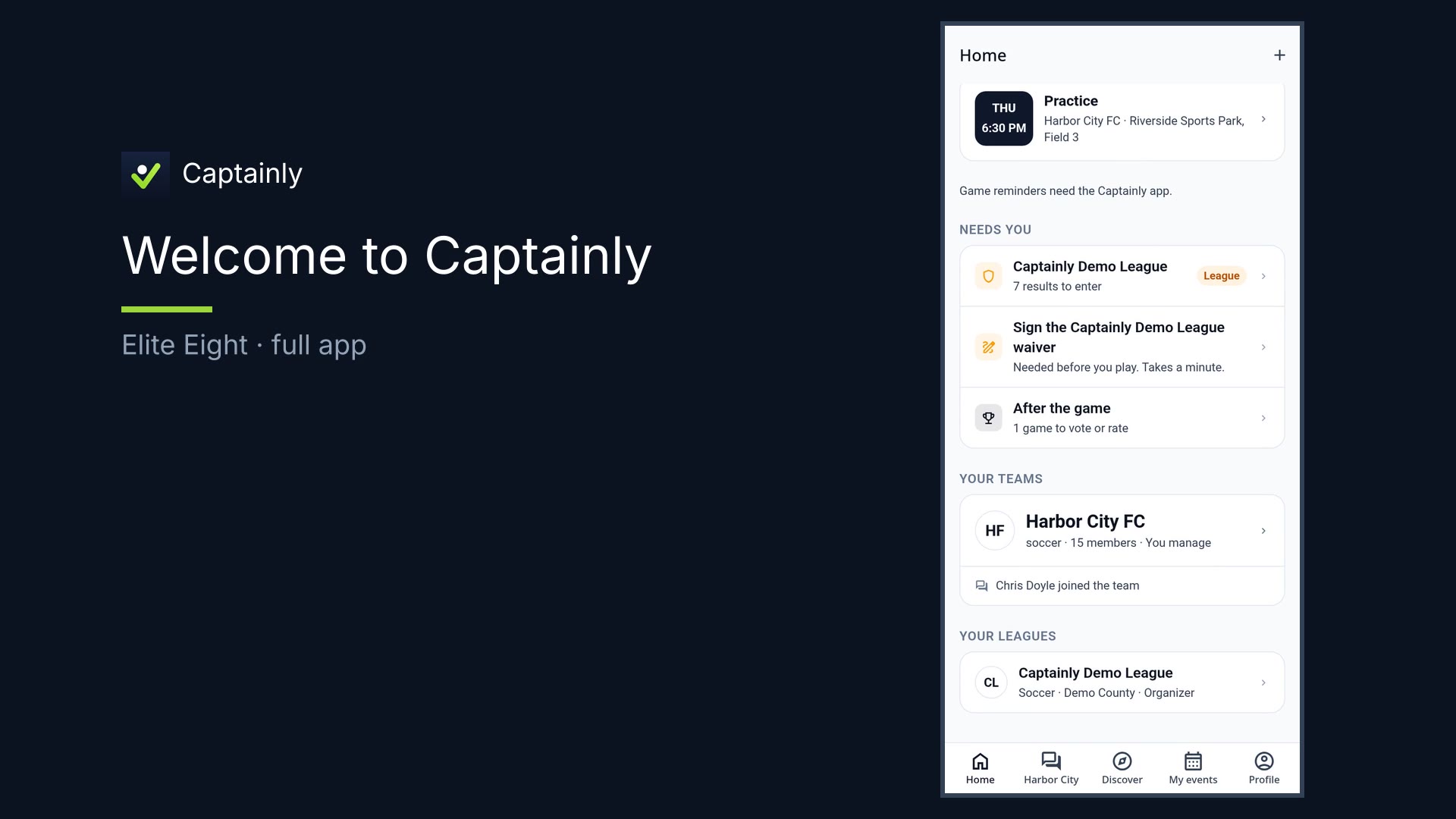
- Land on Home. That’s your hub for next up, needs you, and the team.
What you can do
- See what’s next — game time and place on Home or the team schedule
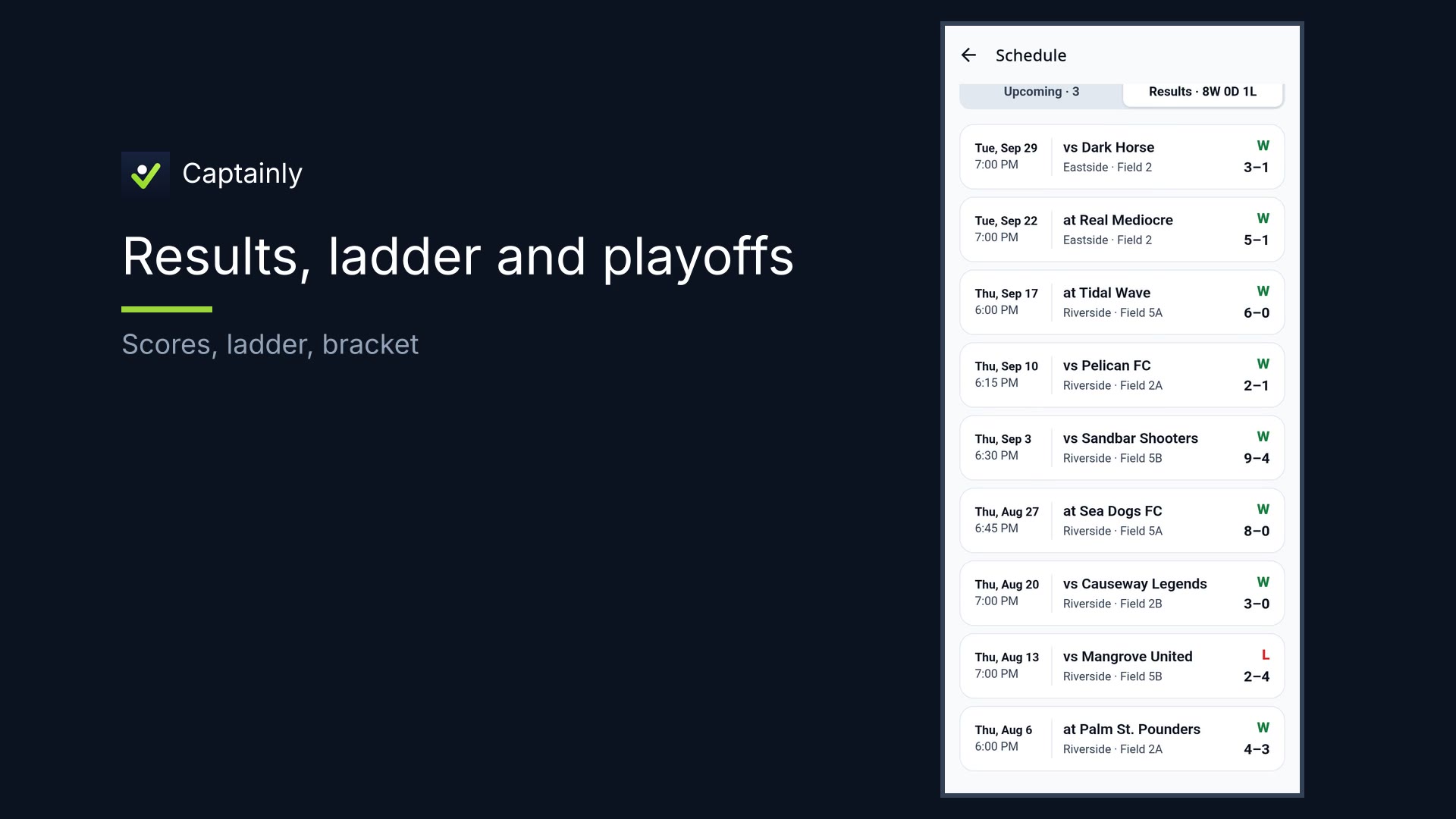
- Check scores and recent results; optional ladder glance
- Handle light “Needs you” items (like a waiver)
- Follow team chat for announcements — photos, clips, and live when the game’s on
How to use it
- Open Home. You’re a parent. Here’s where everything lives.
- What’s next. Check game time and place without digging through texts. Tap the team for the full schedule.
- Scores / results. Open Results. “Who won?” in one tap. Peek the ladder if you like.
- Needs you (when it appears). Sign a waiver or clear a simple prompt so nothing important hides in email.
Scores. Schedules. That’s it — Captainly.